
Workflow context
What this guide helps you accomplish
Configure the identity and domain of a UnionStack Site so visitors can recognize and trust the experience.
Branding and domain settings should identify the represented union at every entry point and remain usable at small sizes and on mobile devices.
Branding and domain configuration should make the represented union organization unambiguous at every entry point.
Before you begin
Prepare the following before changing shared configuration or records:
- A named owner for the site, report or integration and a written description of its audience and purpose.
- Fake source records that can be published, reported or retrieved without exposing member information.
- A review plan covering access, mobile presentation, errors and the ongoing maintenance owner.
- Approved logo, icon, domain, link and social-profile details for the fake site.
Procedure
Complete the steps in order with fake or approved test information first. Record configuration decisions that will affect other teams.
Confirm site ownership
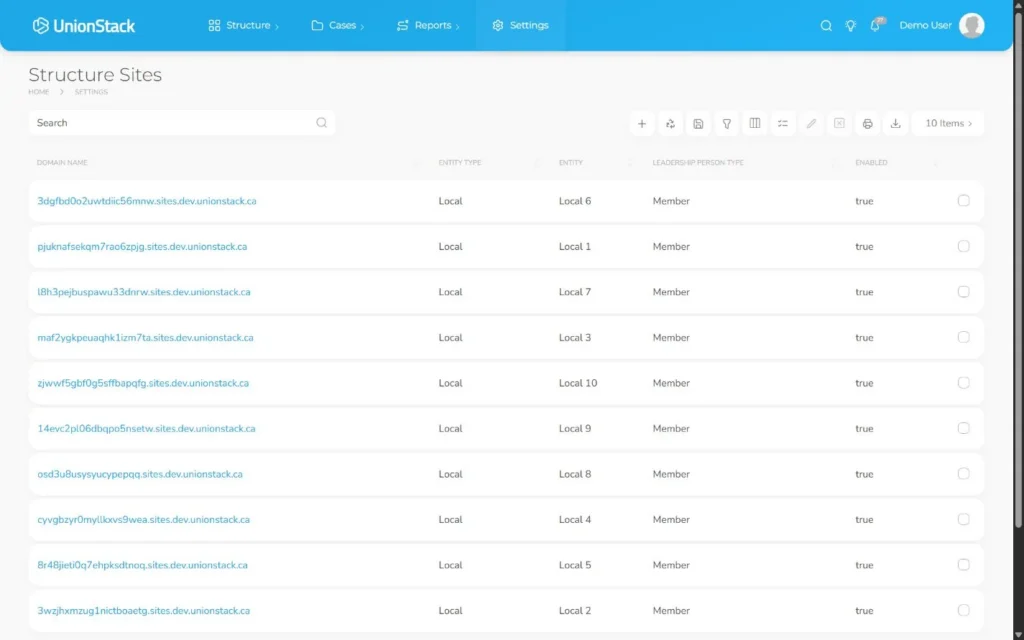
Identify the entity or people type the site represents and the administrators responsible for its content and domain.
Prepare approved brand assets
Use the correct logo, icon, colors and naming. Confirm assets are readable at small sizes and include appropriate alternatives.
Configure the domain
Use the approved domain or subdomain and coordinate required DNS and certificate work through the authorized administrators.
Add navigation and social links
Use descriptive labels and verify every external profile belongs to the represented organization.
Test identity across pages and devices
Review the site header, browser icon, page titles, links and mobile navigation before public launch.
Product view
Video demonstration
Related demonstration
Prepare and review a public UnionStack Site
This conceptual guide shares the demonstration used by the main hands-on procedure.
Watch the captioned demonstration →Troubleshooting
Use the symptoms below to diagnose the workflow before widening access, adding duplicate configuration or bypassing an intended control.
The correct logo appears in one place but not another
Check the site-specific logo and icon settings, cached assets and domain being viewed. Test the header, browser icon and social preview separately.
The result exposes too much or too little information
Return to the source record, audience definition and authorization rule. Correct publishing status, filters or access before changing content solely to hide the symptom.
A count or page does not match expectations
Verify source quality, status, effective dates, relationships and filters. Reproduce the result with one known record before changing the configuration.
An external connection stops working
Check ownership, authorization expiry, redirect or domain settings and recent provider changes. Rotate or reauthorize credentials through the approved secure process.
Validation checklist
Do not treat the procedure as complete until an authorized second person can reproduce the intended result.
- The approved identity, domain and links are consistent on desktop, mobile and the browser tab.
- The intended audience can reach the result and an unauthorized or signed-out user cannot reach protected information.
- Every displayed value can be traced to an understood UnionStack source record or documented calculation.
- Mobile, keyboard, link and error-state checks have been completed.
- An owner and recurring review date are recorded for the live site, report or integration.
Version applicability
This guide was verified for UnionStack 2.0 on August 16, 2026. Available fields, types, relationships, navigation and access can vary with tenant configuration and user permissions.
Corresponding product capability
Union member portals and sites
See the feature evidence, connected workflows and buyer guidance behind this procedure.
Explore Union member portals and sites →Continue learning
Return to the UnionStack Learning Centre, or take the UnionStack product tour to see how these parts connect.